01
On-screen text search · OCR
Find the frame where the words appear.
Use Focus text and visual search to narrow local footage by what appears on screen. Open a candidate at its source timecode, run Analyze frame → OCR when the exact characters matter, and save only the range you verify.
Free trialLocal indexNo cloud upload required
Focus Search
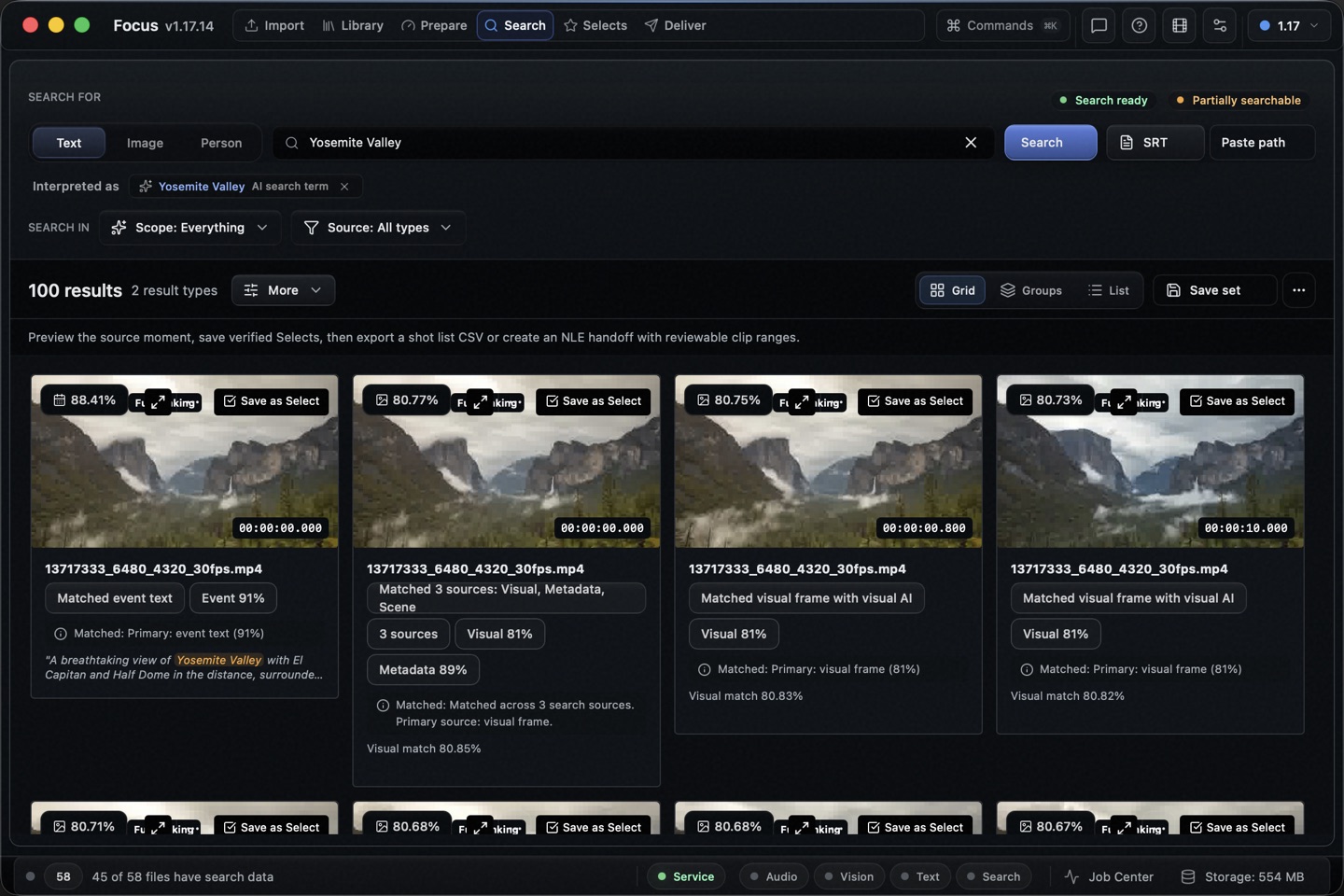
Product capture: a text query returns candidates with the source filename, timestamp, and Save as Select action. Open the source before using frame OCR.
Short answer
How do you find on-screen text in a video?
Start with a text query or a description of what appears on screen. Focus can narrow indexed local footage to candidate moments, then opens the original source at the result timestamp. If you need to read the actual characters, use Analyze frame → OCR on that frame. Transcript search is a separate path for words spoken in audio.
02
Frame check: open the candidate at its source timestamp and use Analyze frame → OCR when exact visible words matter.
03
Source verification: keep the original filename, path, and exact timecode attached before a Select is approved.
04
Local-first boundary: index and search local folders or mounted drives without a required cloud upload.
01
Start with text and visual search
Enter the phrase or visual description you remember, then choose the local footage and search signals that fit.
02
Open the source moment
Open the result at its source timestamp so you can inspect the text, surrounding picture, and usable range.
03
Read and verify the frame
Use Analyze frame → OCR when you need the visible characters, then treat the output as a check against the original frame.
The friction
The frame you remember is not in the filename.
Use Focus text and visual search to narrow local footage by what appears on screen. Open a candidate at its source timecode, run Analyze frame → OCR when the exact characters matter, and save only the range you verify.
01
Editors remember a title card, URL, street sign, product label, slide heading, or UI message but not the clip name.
02
Transcript search cannot find text that appears only in the picture.
03
A text or visual match is a candidate; it is not an extracted OCR record until the source frame is opened.
04
Small, stylized, blurred, or partially covered text still needs a human check against the surrounding picture.
How Focus helps
Find a candidate, read the frame, keep the source.
Focus keeps text and visual search, source playback, frame OCR, and Selects in one local workflow. It narrows the archive first; the original clip remains the evidence.
01
Start with text and visual search
Enter the phrase or visual description you remember, then choose the local footage and search signals that fit.
02
Open the source moment
Open the result at its source timestamp so you can inspect the text, surrounding picture, and usable range.
03
Read and verify the frame
Use Analyze frame → OCR when you need the visible characters, then treat the output as a check against the original frame.
04
Save the verified range
Keep the original filename and timecode in the Select, group approved moments into Sequences, and continue to the NLE handoff.
Frame text workflow vs filename-only review
Focus
Focus- Use text and visual search to narrow local footage by what appears on screen.
- Open the source result at its timestamp and use frame OCR when exact characters matter.
- Keep the source file, path, and in/out range attached while you verify.
- Move approved Selects into Sequences and NLE handoff files.
Filename-only or upload-first review
- Guess from filenames or manually typed notes.
- Send private footage to a service before it can be reviewed.
- Treat a text match as final without checking the frame.
- Retype ranges when the edit is assembled elsewhere.
Source record
Keep the filename and timecode attached to the frame check.
These rows are copied from the public filled selects-log example. The example is fictional: its filenames, paths, timecodes, descriptions, and statuses illustrate a source record, not Focus search output or a benchmark. For an OCR check, the source file and exact in/out range are the anchors a reviewer and the next editor can verify.
| Signal | Source file | Source path | In | Out | Verification note |
|---|---|---|---|---|---|
| Spoken transcript | interview-a.mov | /project/interviews/interview-a.mov | 00:12:14.200 | 00:12:27.800 | Published example: approved quote. Confirm the audio and frame before reusing the range. |
| Visual candidate (example) | broll-office-03.mov | /project/broll/broll-office-03.mov | 00:03:41.000 | 00:03:47.500 | Fictional public-log row. The range is marked source-verified, but the CSV contains no OCR transcription; read the frame before using it. |
| Visual context | reaction-cam-b.mov | /project/interviews/reaction-cam-b.mov | 00:26:08.100 | 00:26:11.900 | Published example: reaction. Keep the original range when it becomes a Select. |
How it works
From a remembered word to an editor-ready Select
A shorter path from footage to the next useful action.
01
Make the local footage searchable
Keep originals where they are on your Mac, Windows machine, external drive, or mounted volume, then run the visual or text search analysis you need.
02
Search what appears on screen
Try the title, sign, label, URL, or visual description you remember. If the words were spoken, use the transcript-search path instead.
03
Open and read the source frame
Open the candidate at its original file and timestamp, use Analyze frame → OCR when needed, and inspect the surrounding picture before adjusting the range.
04
Save, sequence, and hand off
Save the confirmed range as a Select with its source record, group approved moments into a Sequence, and export to Premiere, Resolve, Final Cut, EDL, FCPXML, SRT, or CSV workflows.
Related pages
Search video dialogue and transcripts
Use transcript search when the words you need were spoken in the audio.
Local video search
See the broader local retrieval workflow across speech, scenes, people, and visual context.
Video Selects workflow
Search, verify the source, save the range, and prepare a clean handoff.
Focus Pro for editors
Move verified Selects into Sequences and export the material for post-production.
Premiere XML export
Carry source-backed ranges from retrieval into a Premiere timeline handoff.
FCPXML, EDL, and SRT export
Choose portable handoff formats for Final Cut, Resolve, subtitles, and review.
Video Selects log template
Download a source-backed log with filenames, paths, timecodes, verification, and notes.
FAQ
FAQ
Does Focus index OCR text as a separate transcript?
The workflow is separate. Use text or visual search to find a candidate moment, open the local source, and use Analyze frame → OCR when you need to read visible characters. Transcript search is for words spoken in the audio.
Can text appear on screen without being spoken?
Yes. A title card, sign, product label, slide, URL, or lower third may never be said aloud. That is why a frame check is separate from transcript search.
Can I trust an OCR match without watching the source?
No. Treat OCR as a frame-level check, not final proof. Check the original frame and surrounding context, then mark the Select as verified only when the source supports the result.
Will Focus upload, rename, or move my footage?
Focus is designed around local indexing and search. Adding library folders does not rename or move the original files, and no cloud upload is required for the local-first workflow.
What happens after I find on-screen text?
Open the source moment, confirm the frame, save the exact range as a Select, group approved moments into a Sequence, and export the handoff your editor or NLE needs.
Ready
Find the word, then trust the frame.
Use Focus to find local video by what appears on screen, read the selected frame when needed, and carry the verified decision into Selects, Sequences, and your NLE.